
Connect multiple accounts
Switch between access-key accounts, STS sessions and supported anonymous connections.
Your storage. Your browser.
Your S3 workflow, without the installation.
Connect your storage, browse buckets and manage files in one familiar interface. All from your browser.
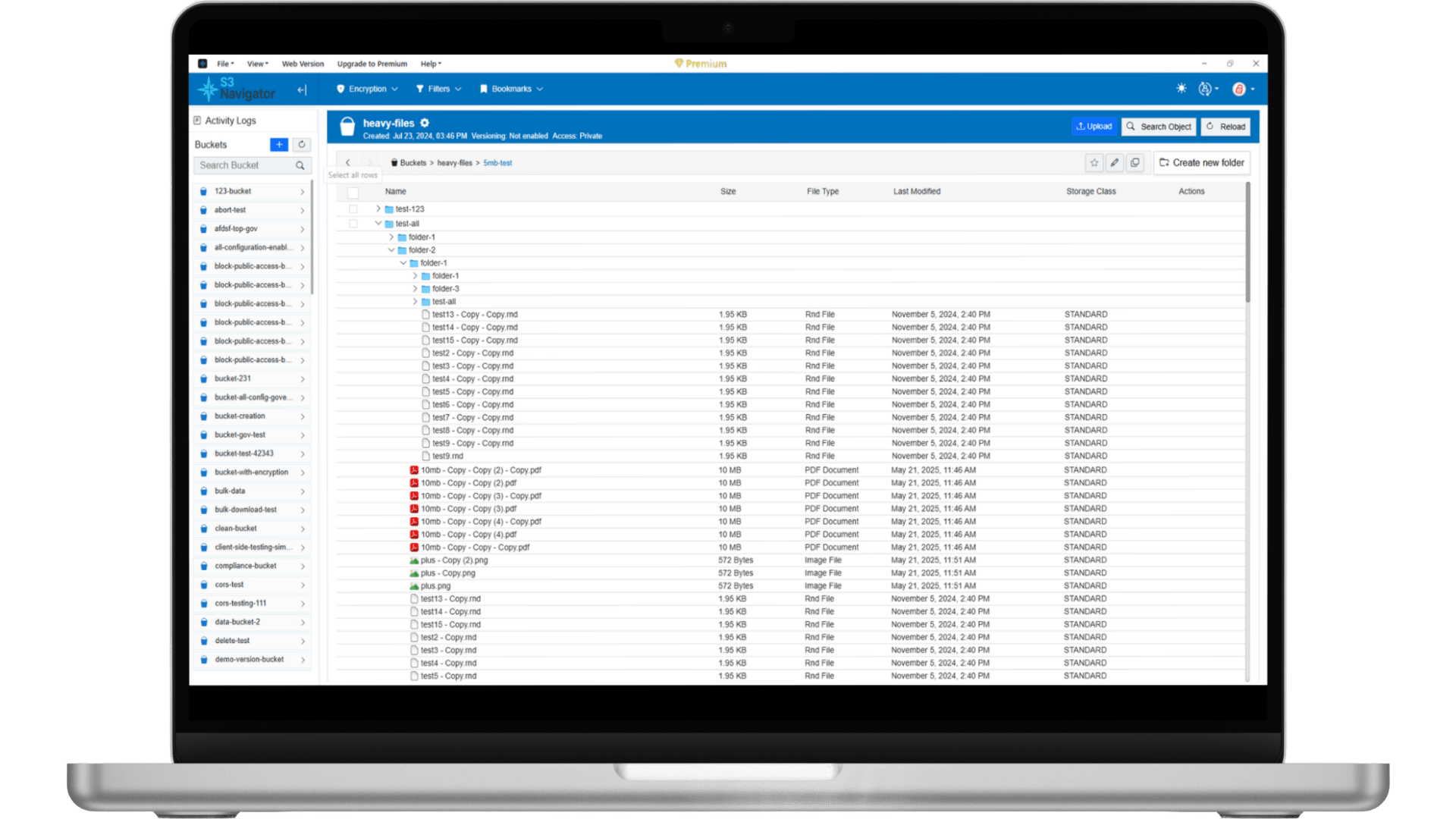
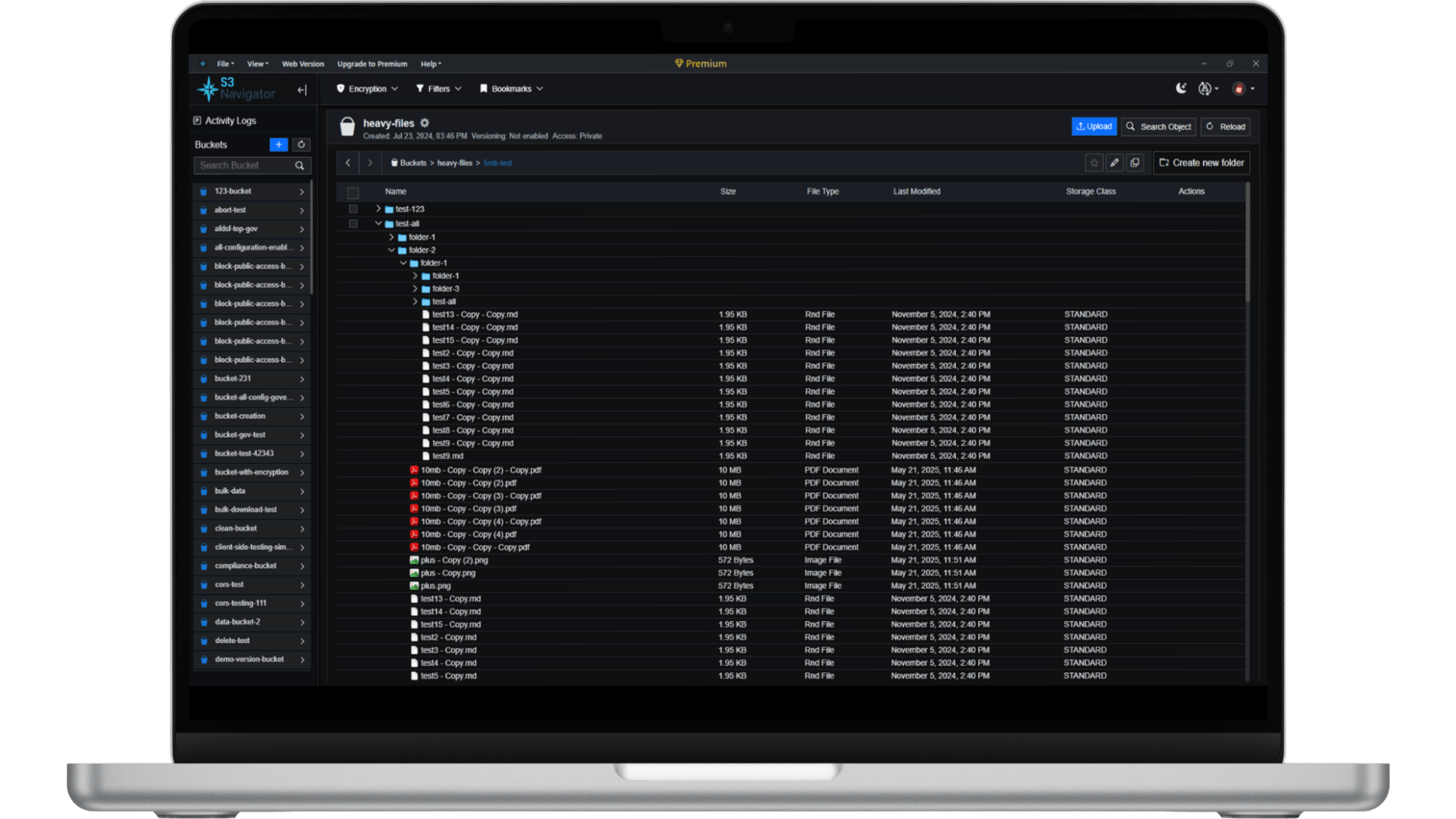
BUILT FOR YOUR WORKFLOW
Everyday tools for S3-compatible storage. Available actions depend on your provider's APIs, permissions and browser access settings.
Switch between access-key accounts, STS sessions and supported anonymous connections.
Explore buckets and folder prefixes, filter listings and inspect object properties.
Move files between your computer and storage with familiar browser controls.
Copy, move, rename or delete selected objects with fewer repeated steps.
Review object properties and manage the metadata and tags your endpoint supports.
Track transfers and operations in one place, with clear progress and failure feedback.
A SIMPLE START
Bring your endpoint. Keep your storage where it is.
Launch S3 Navigator and add a storage connection.
Enter your endpoint and scoped credentials, or use a supported anonymous URL.
Use a reachable HTTPS endpoint with a valid certificate and compatible CORS rules.
Choose an account and bucket, then upload, download or manage objects.
ONE PRODUCT. TWO WAYS TO WORK.
Start in a tab, or choose native tools for longer-running work.
| Your workflow | Web AppStart in your browser | Desktop AppWindows, macOS & Linux |
|---|---|---|
| Getting started | No desktop installation | Install on your computer |
| Storage access | Browser CORS and HTTPS rules apply | Native desktop connectivity |
| Local files | Browser selection and download controls | Native file and folder integration |
| Long-running work | Keep the tab open; browser and device limits apply | Desktop transfer controls and background workers |
Features and limits vary by platform and plan. Compare Free and Pro or choose a desktop installer.
FAQ
Helpful answers before you connect.
The web app runs in a JavaScript-enabled browser. Your storage endpoint must allow browser connections. The desktop version is available separately.
Browsers enforce cross-origin rules and restrictions on insecure connections from HTTPS pages. Check your endpoint's certificate, HTTPS access and CORS configuration for the web app's origin.
Keep the web app open until your operation completes. Closing the tab, browser suspension or device sleep can interrupt browser work. Consider the desktop client for longer-running workflows.
The web app stores saved connection settings in the local browser profile. They are not a cloud backup; clearing site data or changing browser profiles can remove access to those saved connections.
READY WHEN YOU ARE
Open S3 Navigator Web App and connect your storage account.